

This guide walks you through setting up and using Laminar for Analytics in OpenHands Enterprise. You’ll opt into Analytics and configure conversations to automatically send traces to Laminar.Documentation Index
Fetch the complete documentation index at: https://allhandsai-av-laminar-enterprise-docs.mintlify.app/llms.txt
Use this file to discover all available pages before exploring further.
Who This Is For
This guide is for users who want to explore analytics on their OpenHands Enterprise conversations.Why Laminar?
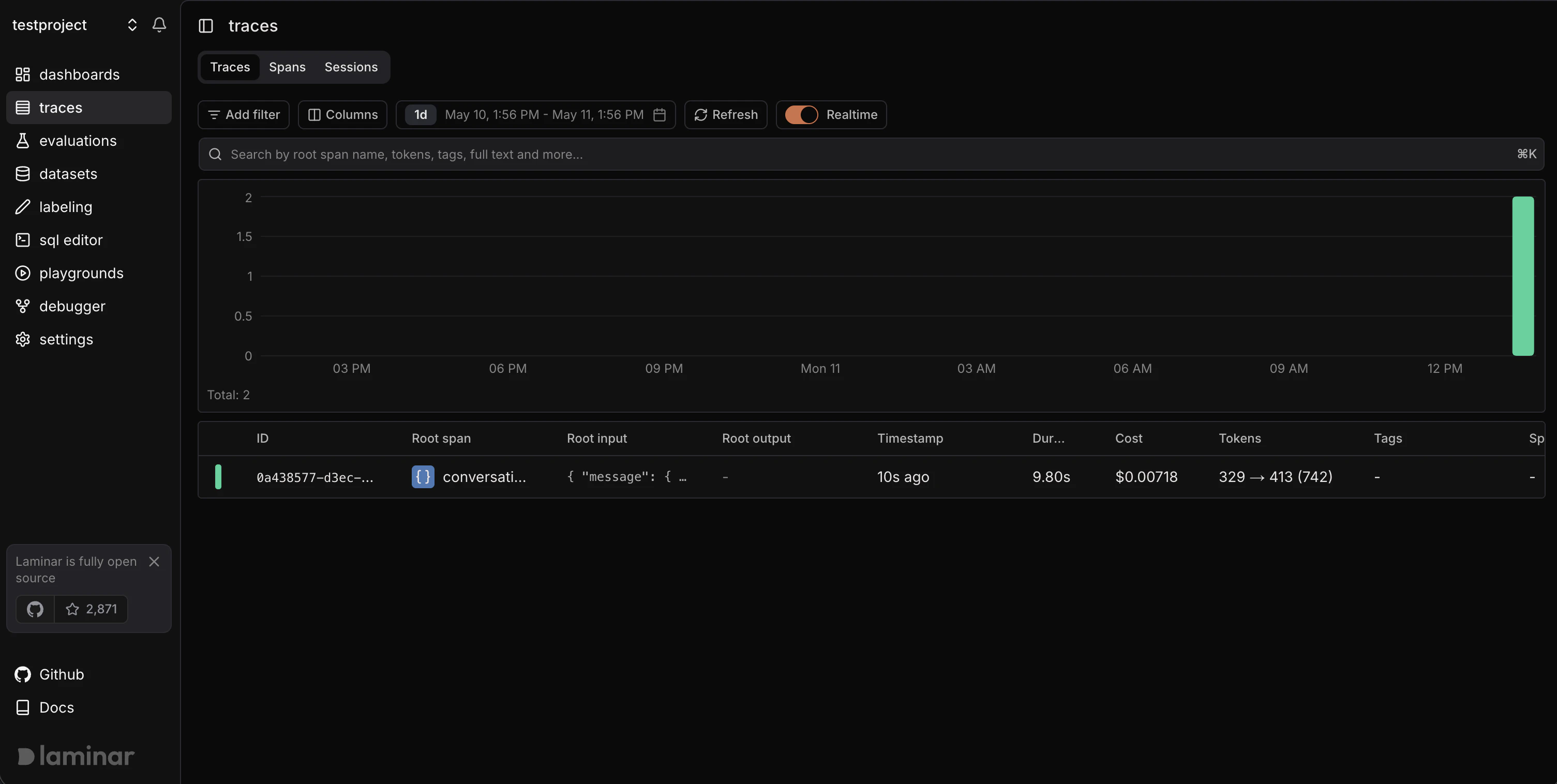
Laminar is an open source observability platform for AI agents like OpenHands. Use Laminar to view your conversation traces including prompts, tool calls, and answers. A trace is a record of what your agent did. Laminar can help you see where the agent went wrong. From traces, you can create signals. A signal is a natural language instruction to extract structured data from traces. Use signals to analyze recurring behavior across traces. You can then create better situations for prompting and measure them in Laminar. You can also analyze and improve your skills. For example, you can view all conversation traces related to a specific skill. Laminar can help you answer the following questions:- On a trace, did the agent do a good job using the skill?
- On another trace, did the agent do a bad job?
Prerequisites
Before you begin, make sure you completed the Quick Start guide.Enable Analytics
You should see an Analytics Configuration section on the application configuration page. Check the Enable Analytics box to have the installer set up and configure Laminar for analytics.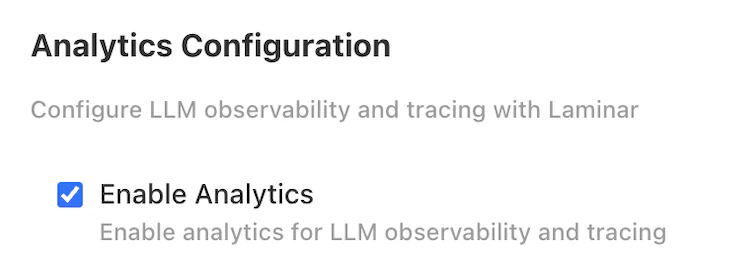
Deploy
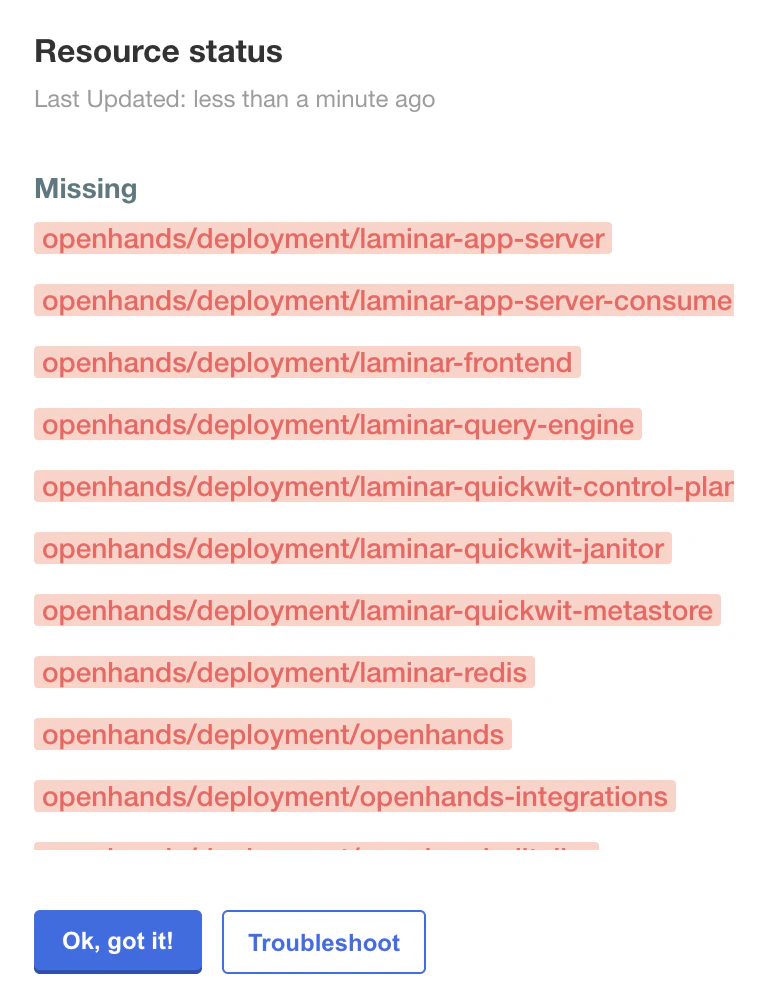
OpenHands will begin deploying. You can expect the deployment status to transition from Missing to Unavailable to Ready. This typically takes 10-15 minutes.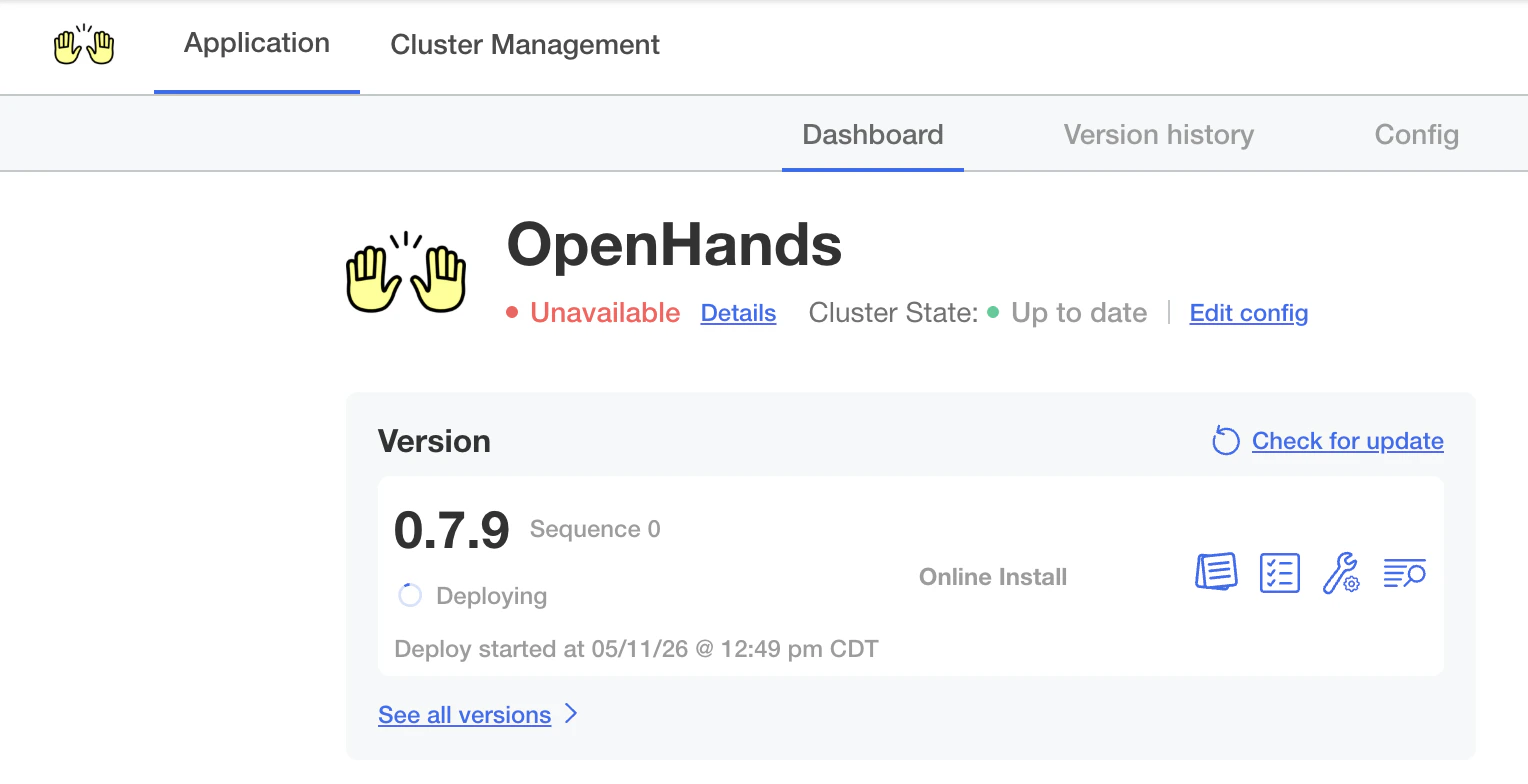
Access Laminar UI
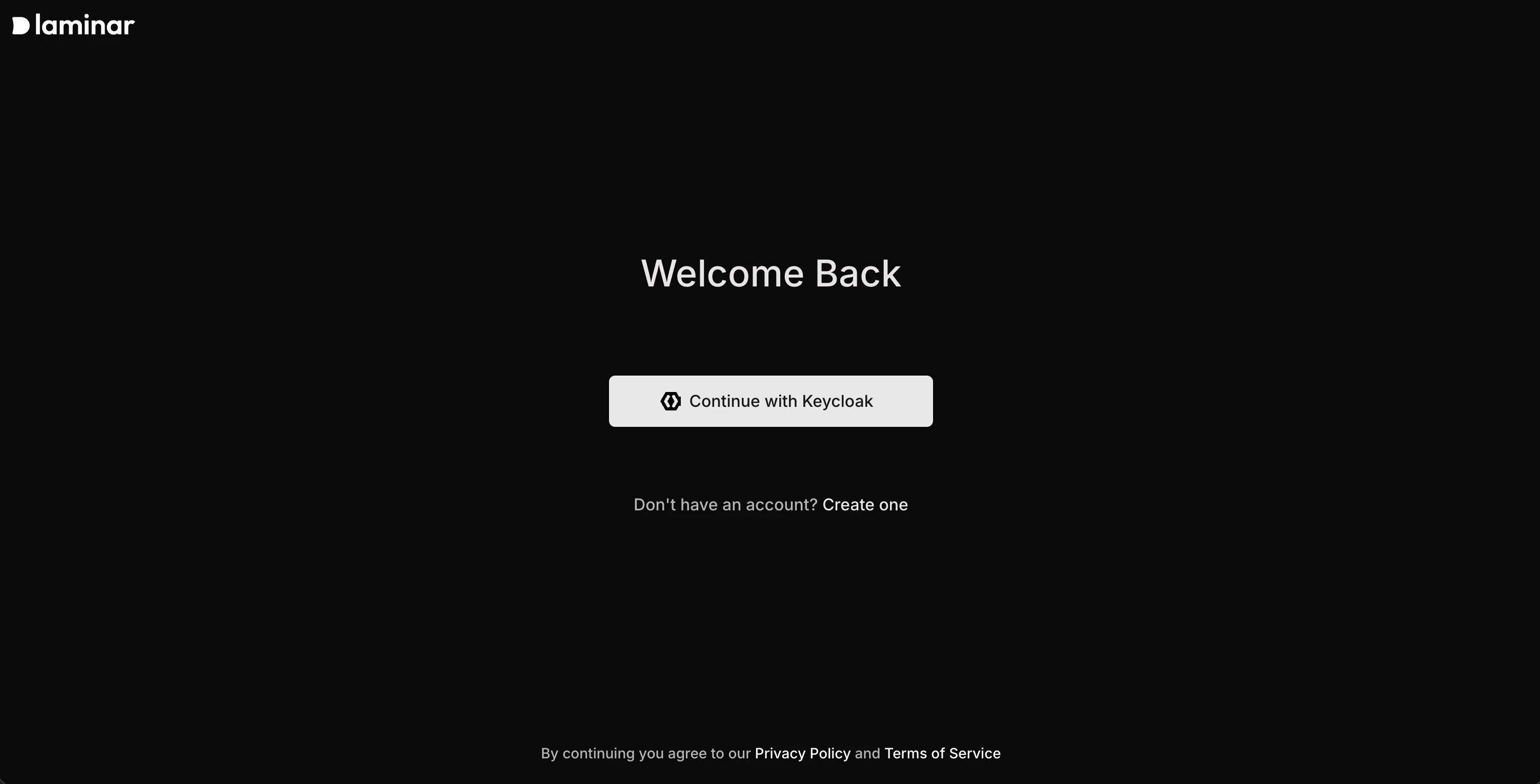
Once the deployment status shows Ready, navigate tohttps://analytics.app.<your-base-domain>.
Click the Continue with Keycloak button:
Create a Laminar project
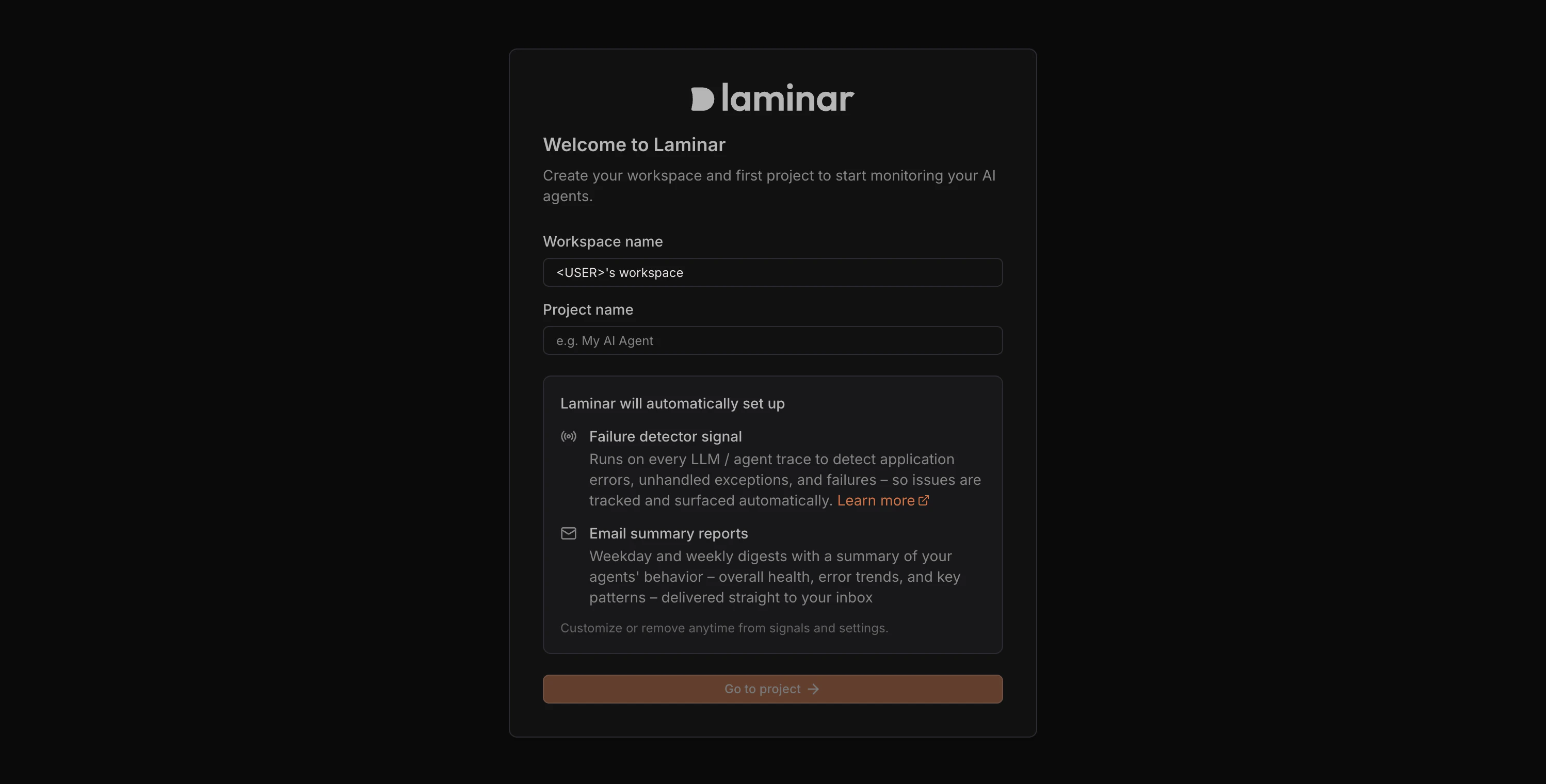
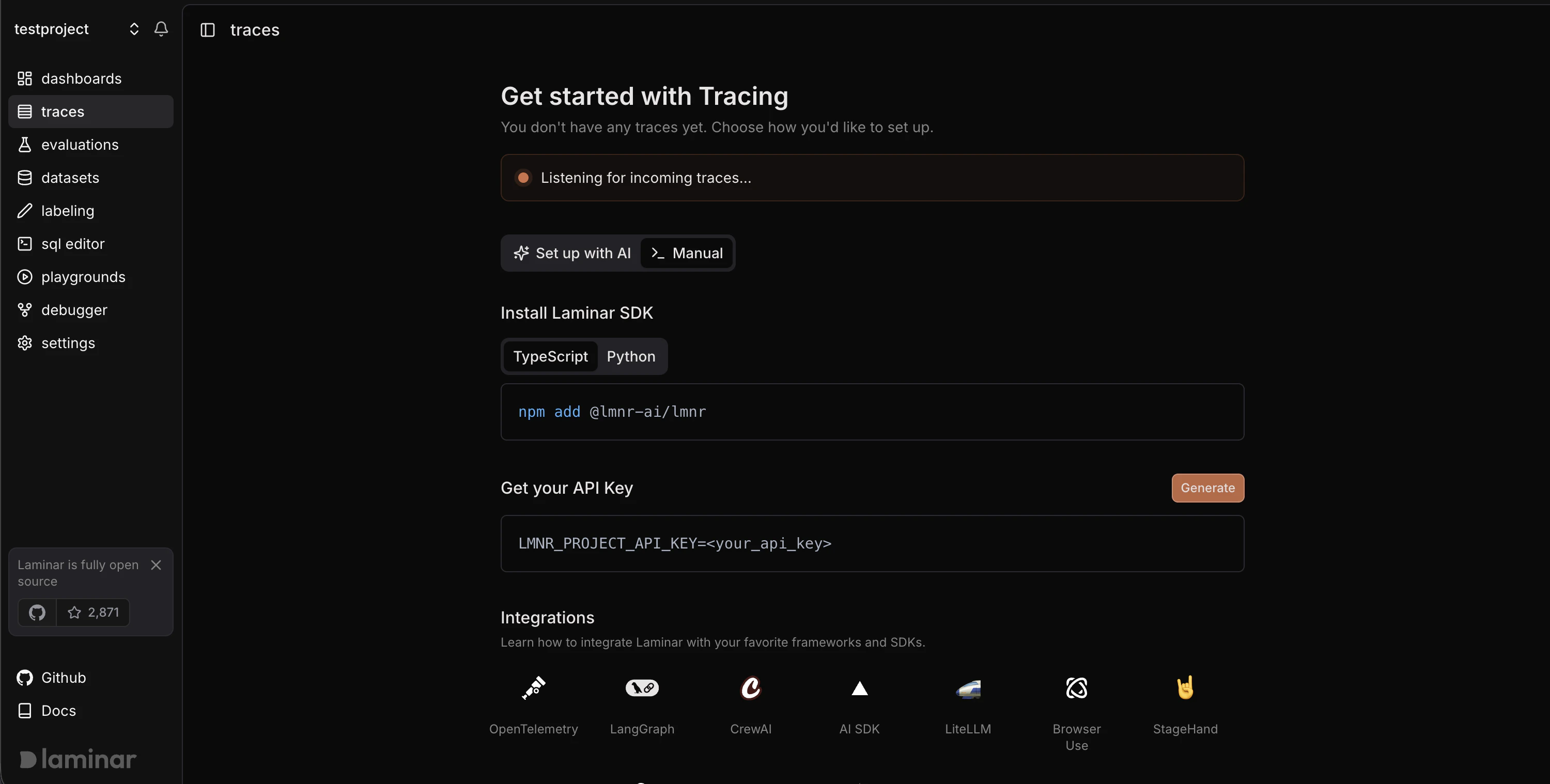
Create an ingest only API Key
Important: Always use ingest API keys when deploying. Create a key with ther right permissions. Ingest only keys are recommended as they only have write access to write traces. They cannot be used to read data.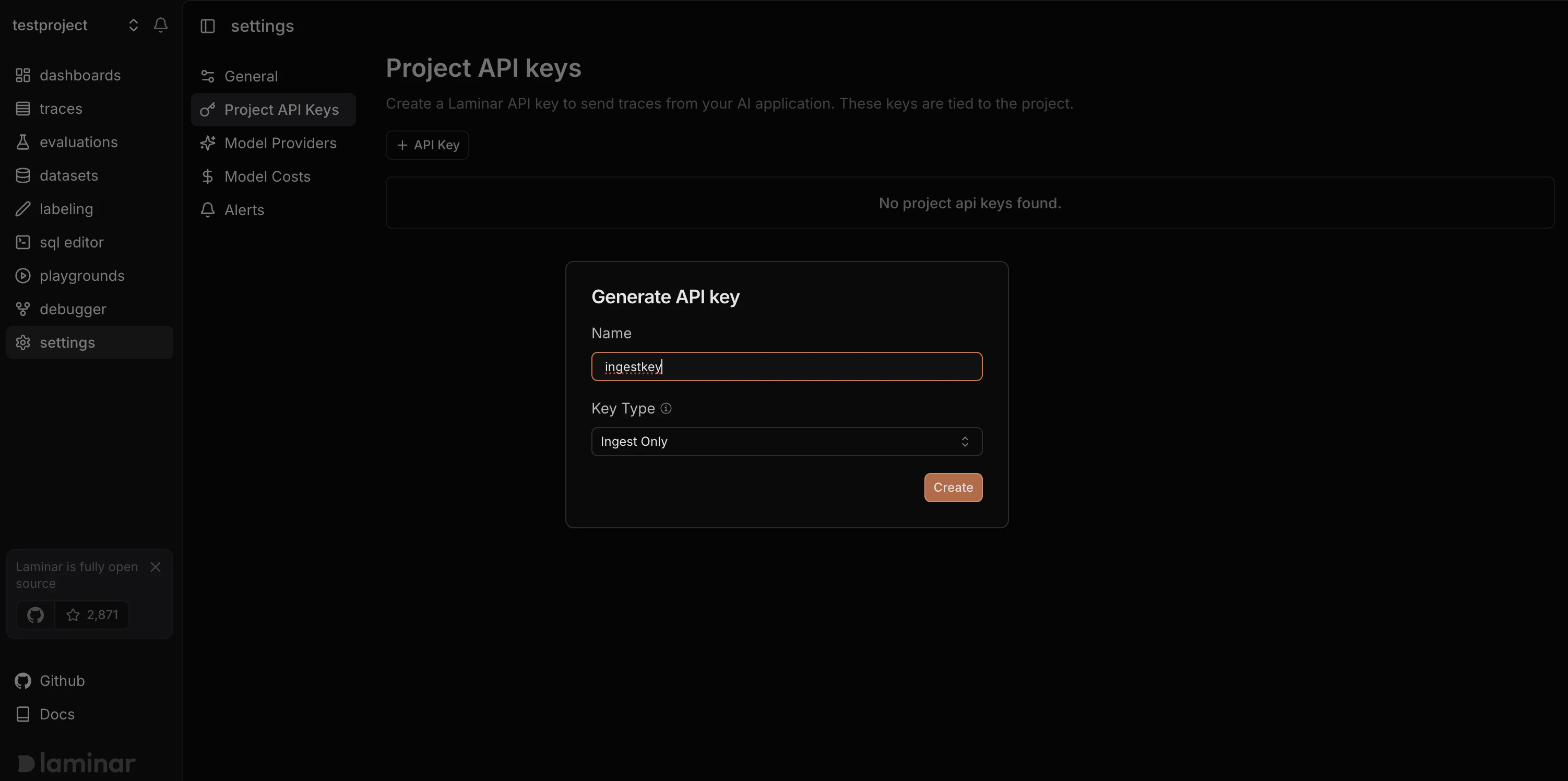
Set Laminar Project API Key to enable automatic conversation traces
Set the ingest only key as the Laminar Project API Key in the Admin Console configuration: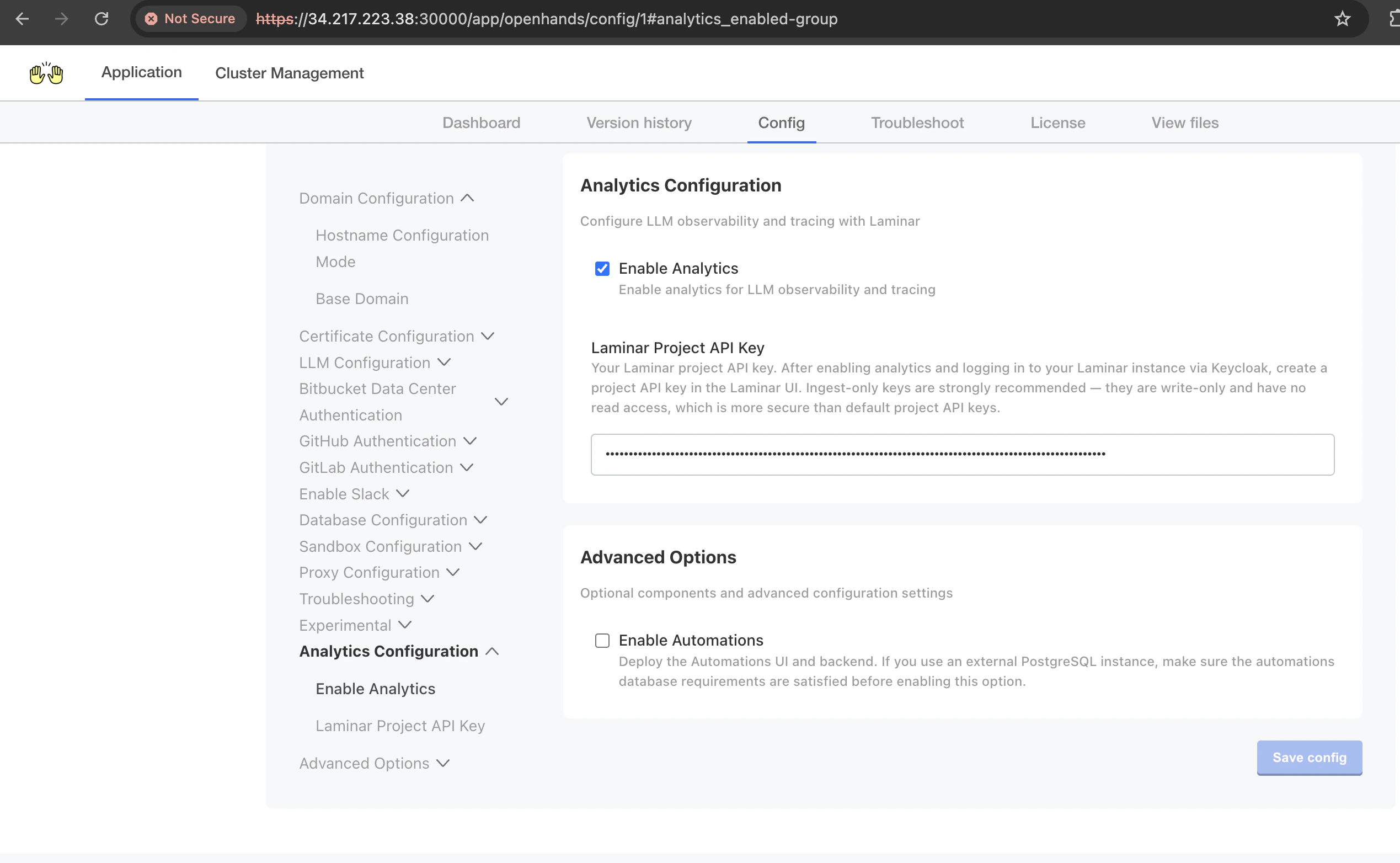
Deploy Updated Configuration
Deploy the config change after setting the Laminar Project API Key in the Admin Console.
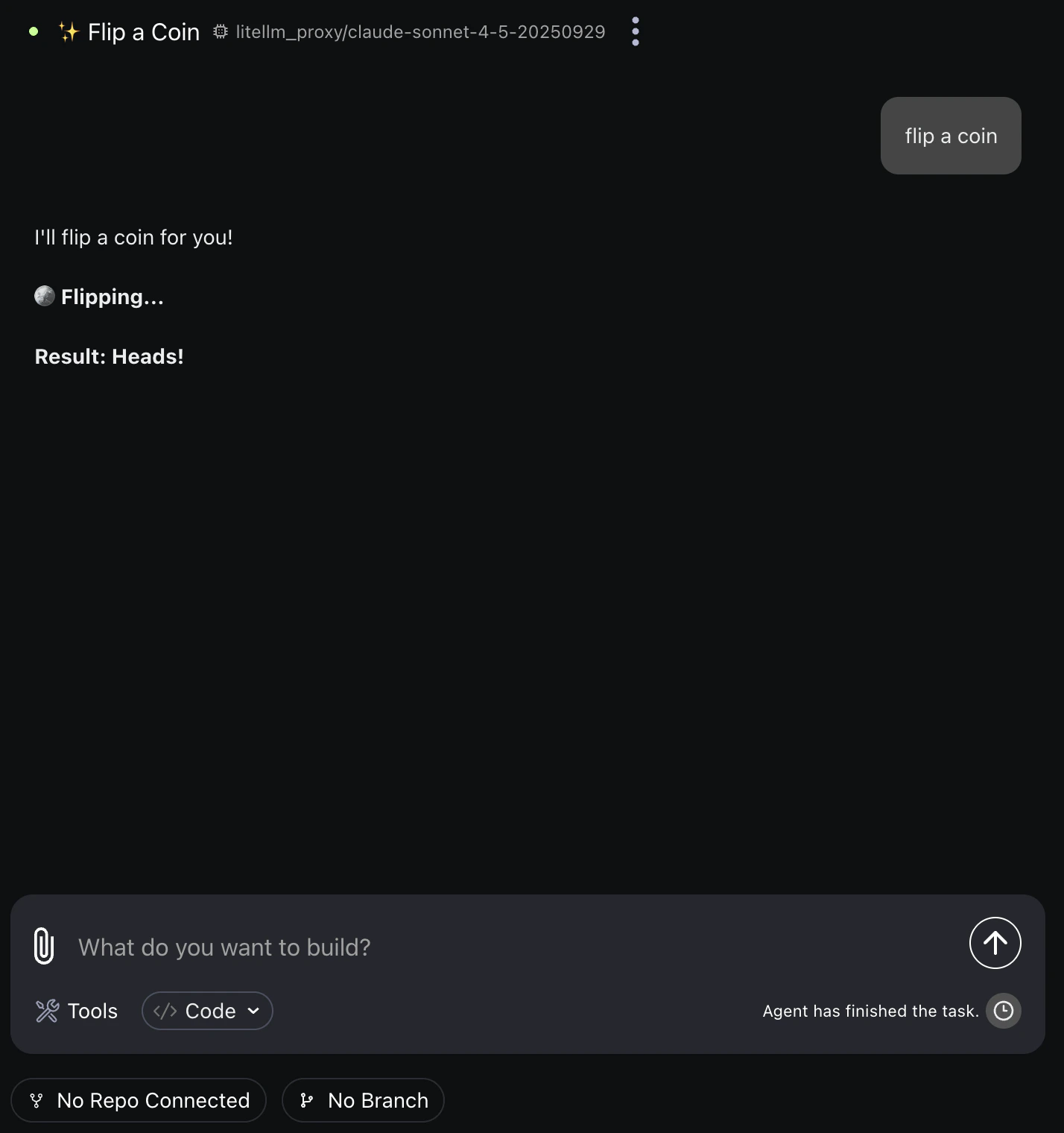
Start a conversation
Navigate to the OpenHands UI athttps://app.<your-base-domain>. Start a new conversation and try a prompt.
Next Steps
Prompting Best Practices
Get the most out of your AI coding agents with effective prompting techniques.
Contact Support
Reach out to the OpenHands team for deployment assistance or questions.
OpenHands Documentation
Explore the full OpenHands documentation for usage guides and features.